
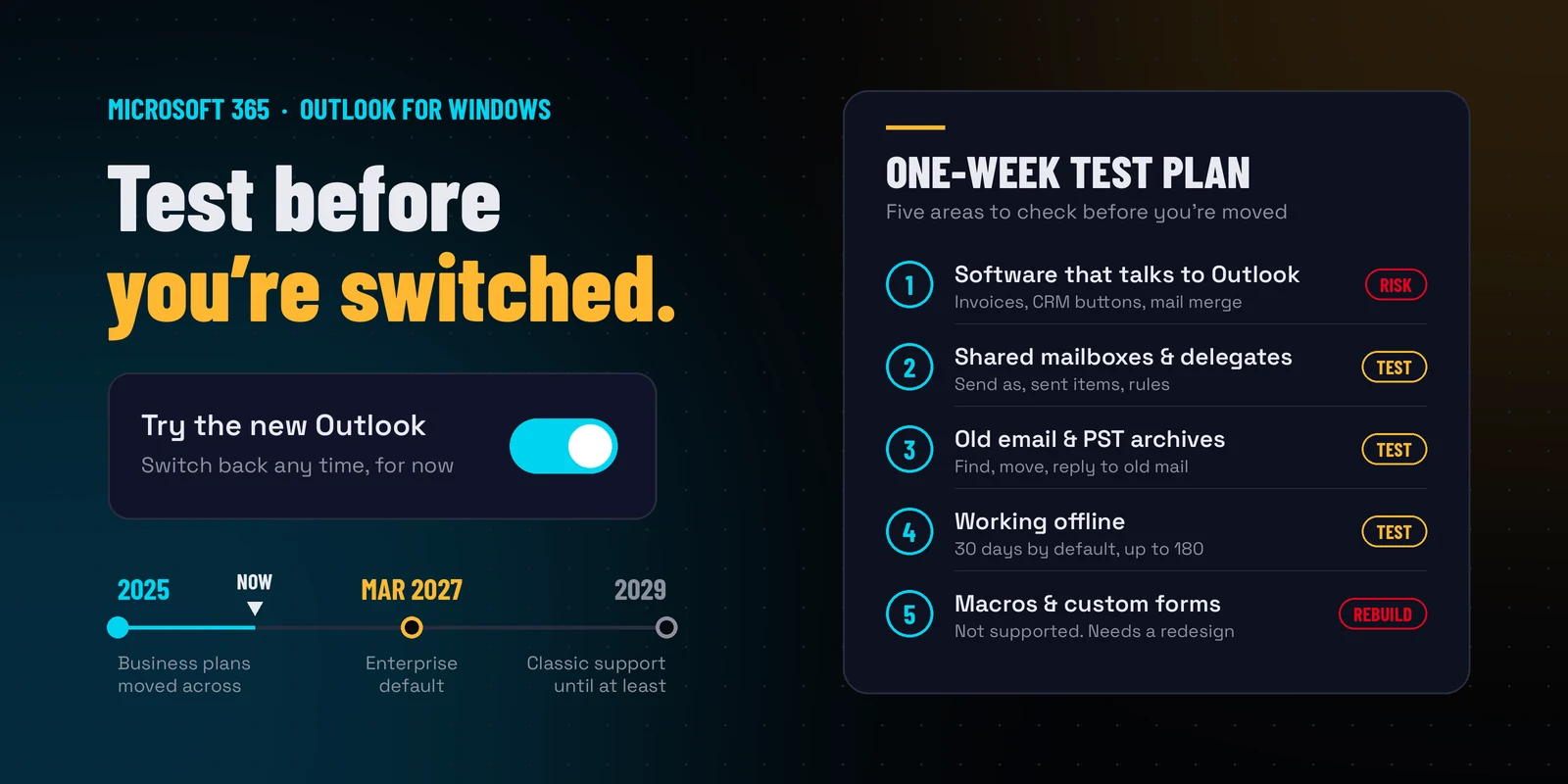
Microsoft is gradually replacing classic Outlook for Windows with the new Outlook. Technically, classic Outlook will be supported until at least 2029. Microsoft 365 Business plans have been moved across automatically since early 2025, and from March 2027 Microsoft plans to make new Outlook the default for Enterprise plans too. For now you can still switch back with one click. The smart move is to test your important workflows now, while going back is easy rather than an emergency.
Reading and sending email works well in new Outlook. The risk is in the processes around email: the things your business has quietly built on top of classic Outlook over the years. Here are the five areas we suggest testing.
1. Software that talks to Outlook
This is the big one. New Outlook doesn’t support the older connection methods that many desktop programs use to work with Outlook. Email itself works fine, but the button or process that relies on Outlook may not. This includes invoices and payslips sent from accounting software, CRM and document management buttons inside Outlook, Word mail merge, and “send as attachment” from other programs. For example, Reckon Accounts Desktop only supports classic Outlook for emailing invoices and other forms. If any software sends email on your behalf, test it first and ask the supplier for their position in writing.
2. Shared mailboxes and delegated access
Think of the accounts inbox, reception, the service desk, or an assistant managing someone’s calendar. These all work in new Outlook, but not always in the same way. Sending as the mailbox, where sent items end up, and shared mailbox rules and signatures can all behave differently. Have the people who actually work in these mailboxes do the testing. A director glancing at their own inbox won’t see any of it.
3. Old email and archives
Support for Outlook archive files (PSTs) is more limited than in classic Outlook. Being able to open an archive doesn’t mean your archiving routine still works. Before relying on new Outlook, test finding, moving and replying to older emails the way you normally do.
4. Working offline
By default, new Outlook keeps the last 30 days of email available offline. You can increase this to 180 days. Some features, such as shared folders and add-ins, aren’t available without a connection. If your people work on the road, on site or with unreliable internet, test a disconnected day before switching them if it matters.
5. Home-grown automation
Outlook macros, custom forms and rules that run scripts don’t work in new Outlook, and Microsoft has no plans to support them. Anything built this way needs redesigning, for example with Power Automate. Moving across is a small project, not a quick setting change. Most businesses aren’t affected, but if you are, you want to know early.
Use the overlap period deliberately
Classic and new Outlook can be installed side by side. Our suggestion: pick one or two people per team who use the workflows above. Have them use new Outlook for a week and keep a written list of anything that breaks. Then talk to your software suppliers, and to us, about the list.
Better to find the problems now, on your schedule, than during a device failure or a forced switch on someone else’s.
It can take a bit of getting used to, but there are new methods for most things in the new version.